 31.7k views · 4.6k likesFeb 24
How to turn your App Store preview into a TikTok demo
Your App Store preview is already a short recording of your app, but it is made for someone who has already found your listing, so it rarely opens in a way that stops a stranger scrolling. Put a short opening clip in front of it with words on screen that name the viewer's problem, cut the preview down to the one moment that solves that problem, and post it as a video to TikTok, Instagram Reels and YouTube Shorts. Show the app only after the viewer cares.
Why a preview on its own rarely works on TikTok
Someone watching your App Store preview is already on your listing and wants to see the app. Someone on TikTok has not decided to care yet. A preview that opens on your logo, a home screen or a feature tour answers a question the TikTok viewer has not asked.
The recording itself is good material: it is short, usually portrait, and shows your app at its best. It just needs a different beginning.
Start from the original file
Use the file you exported for App Store Connect, or the editing project you made it from, rather than a copy saved from the store page. The same goes for a demo on your website: the original export is sharper than anything downloaded back from the page.
Keep it portrait. TikTok, Reels and Shorts all fill a phone screen held upright, and a landscape recording shrinks to a strip in the middle.
Add an opening about the viewer
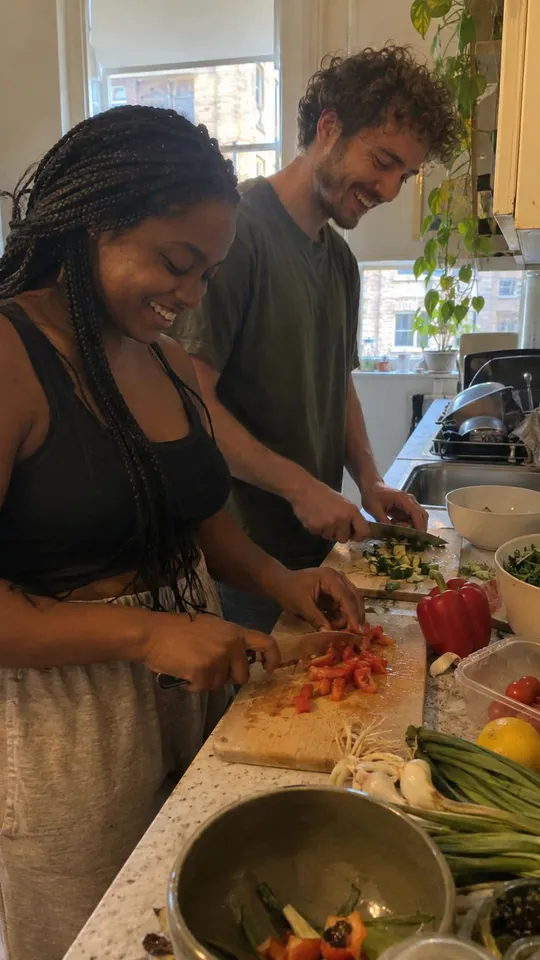
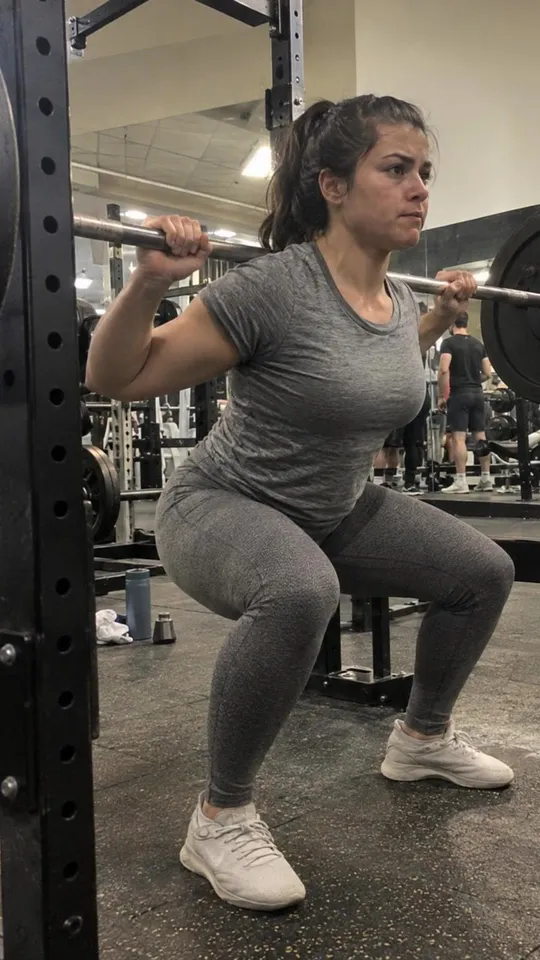
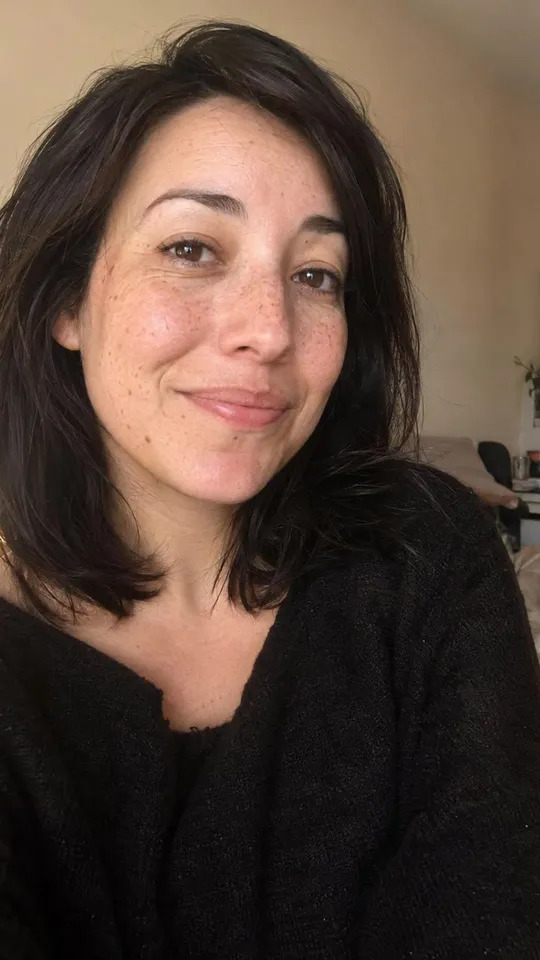
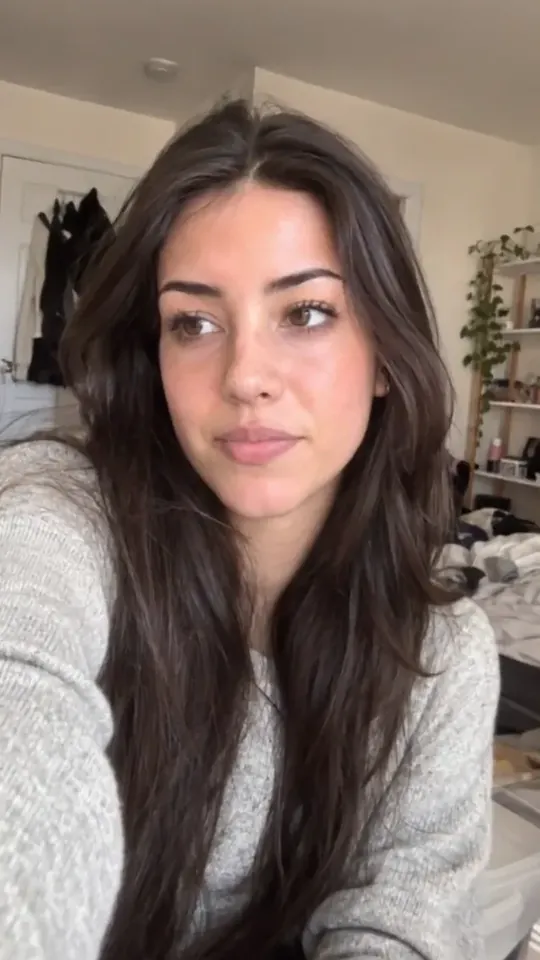
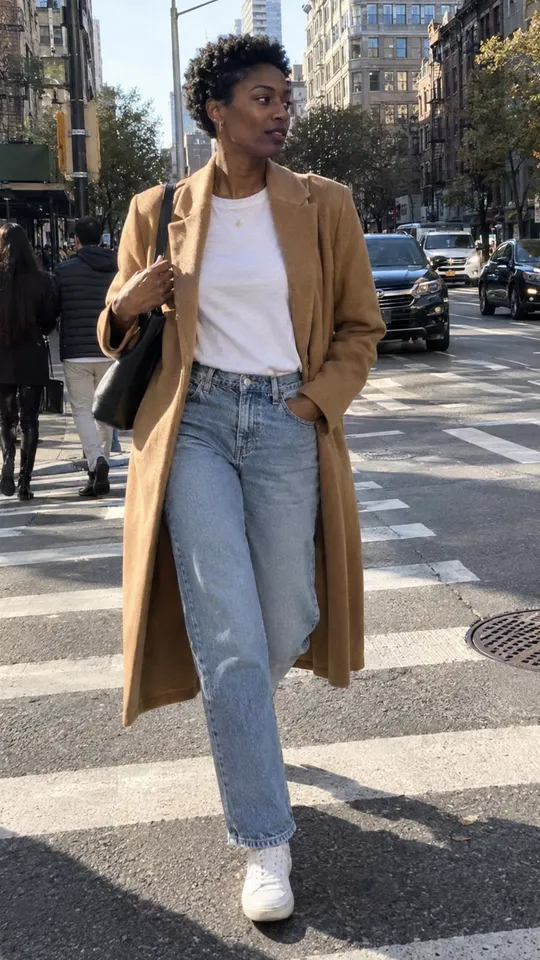
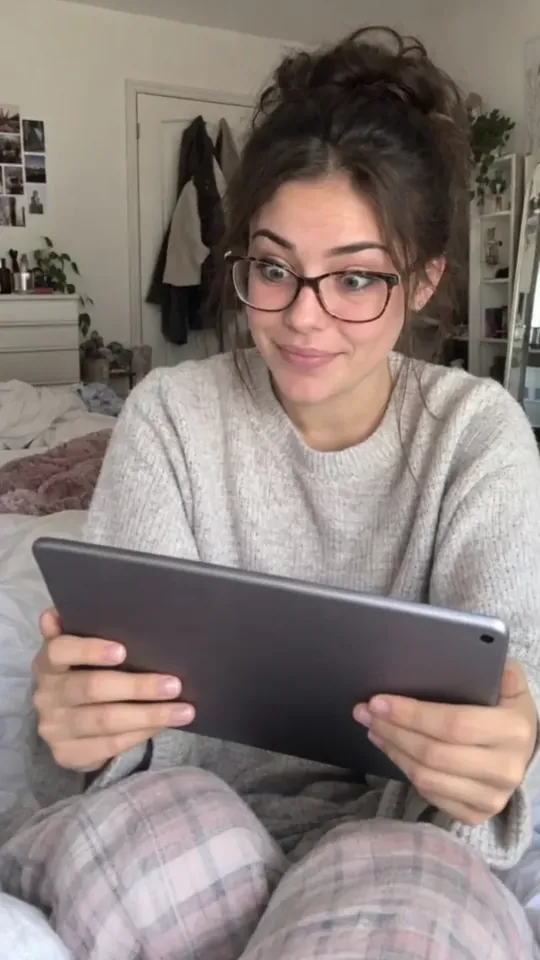
Before the app appears, give the viewer a moment they recognise: a short clip of a person, a place or a situation, with words on screen that name the problem in the viewer's own words. 'Me at the fridge every evening with no idea what to cook' does more than 'Introducing the smart meal planner'.
The opening only has to earn the next few seconds. The cut to your app is the turn: here is the thing that fixes what you just saw.
Cut the preview to one moment
A preview usually shows several features. A demo post shows one: the moment that solves the problem your opening named. Cut sign-up screens, settings, logo cards and anything that needs explaining.
If your preview covers several problems, that is several posts. Make one demo for each, each with its own opening, and see which problem your audience responds to.
Words, sound and length
Some people watch with the sound off, so the words on screen should carry the post on their own. Keep them large, short and clear of the edges, where each app puts its buttons and caption.
Add a song from the platform's own library when you post, or your own track. Keep the whole post short - the opening, the moment, and out. A demo that ends while the viewer still wants more is doing its job.
Post it everywhere video goes
The same video can go to TikTok, Instagram Reels and YouTube Shorts. Each audience is different, and one may suit your app far better than the others, so post it to all three and compare what it got on each.
Where Topped fits
You can do this in any video editor, CapCut included. Topped does it for you: when you sign up with your App Store link or website, it looks for your listing's preview videos and the videos your site plays, and lets you keep the ones you want as demos, or upload your own screen recording. From then on it proposes Demo videos - a short opening clip with the words written for your viewer, then your app in action - for you to approve and post to your own TikTok, Instagram and YouTube accounts. There is a free plan with no card.
See it on your own app. Free to start, no card.
Start free